# Favorites & Compare
{% hint style="info" %}
Colors and layout of the buttons can be adjusted in *Theme settings -> Product cards ->* [*Favorites & Compare*](https://mpithemes.gitbook.io/unicorn-shopify-theme/theme-settings/product-cards#favorites-and-compare).
{% endhint %}
## Favorites
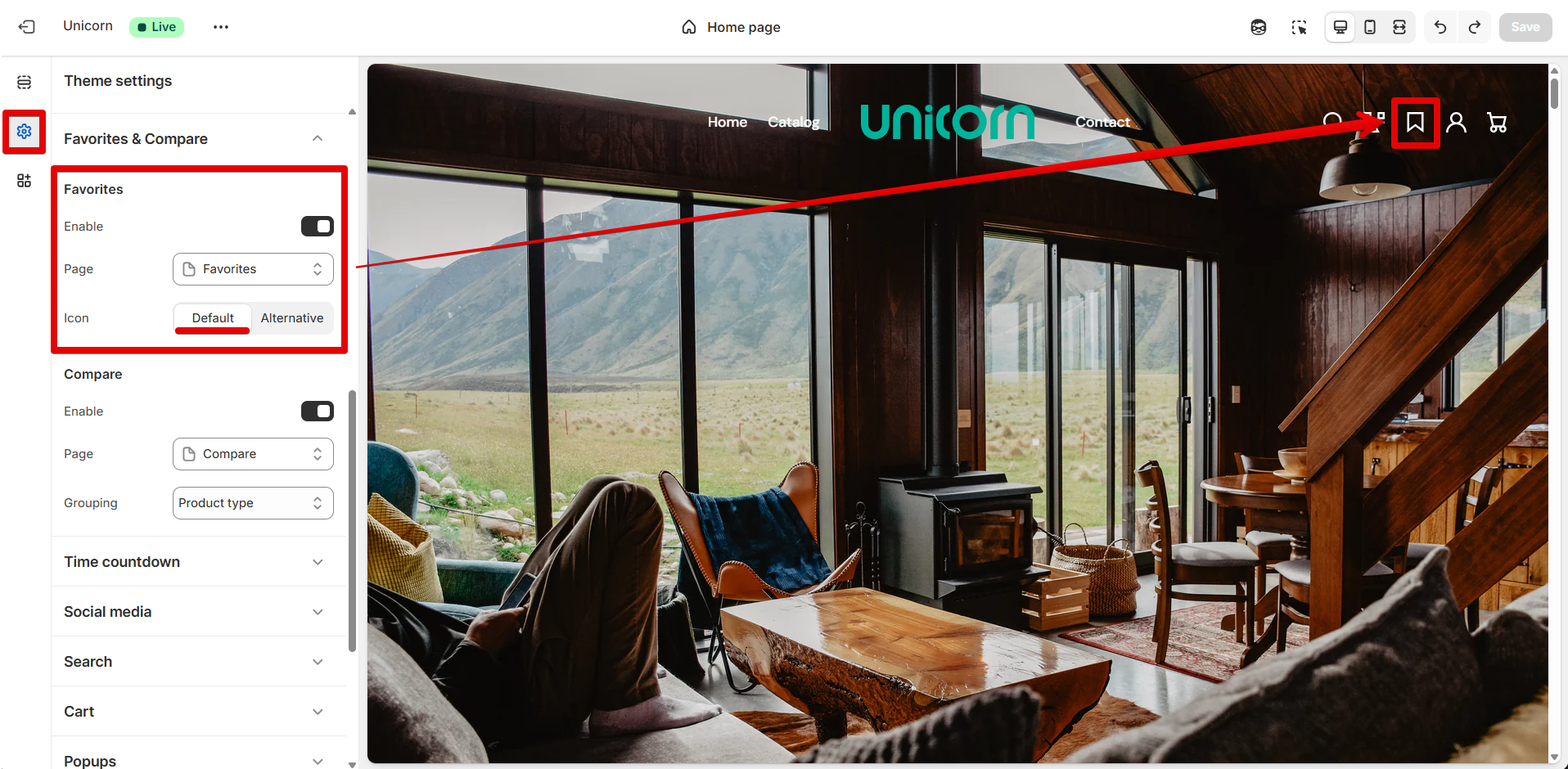
Display the favorites icon in the Header, as well as the favorites button on product cards and product pages of the entire store, using the **"Enable"** option.
The page template can be specified in the **"Page"** source selector.
The favorites icon can be switched between "Default" and "Alternative" using the **"Icon"** picker.
## Compare
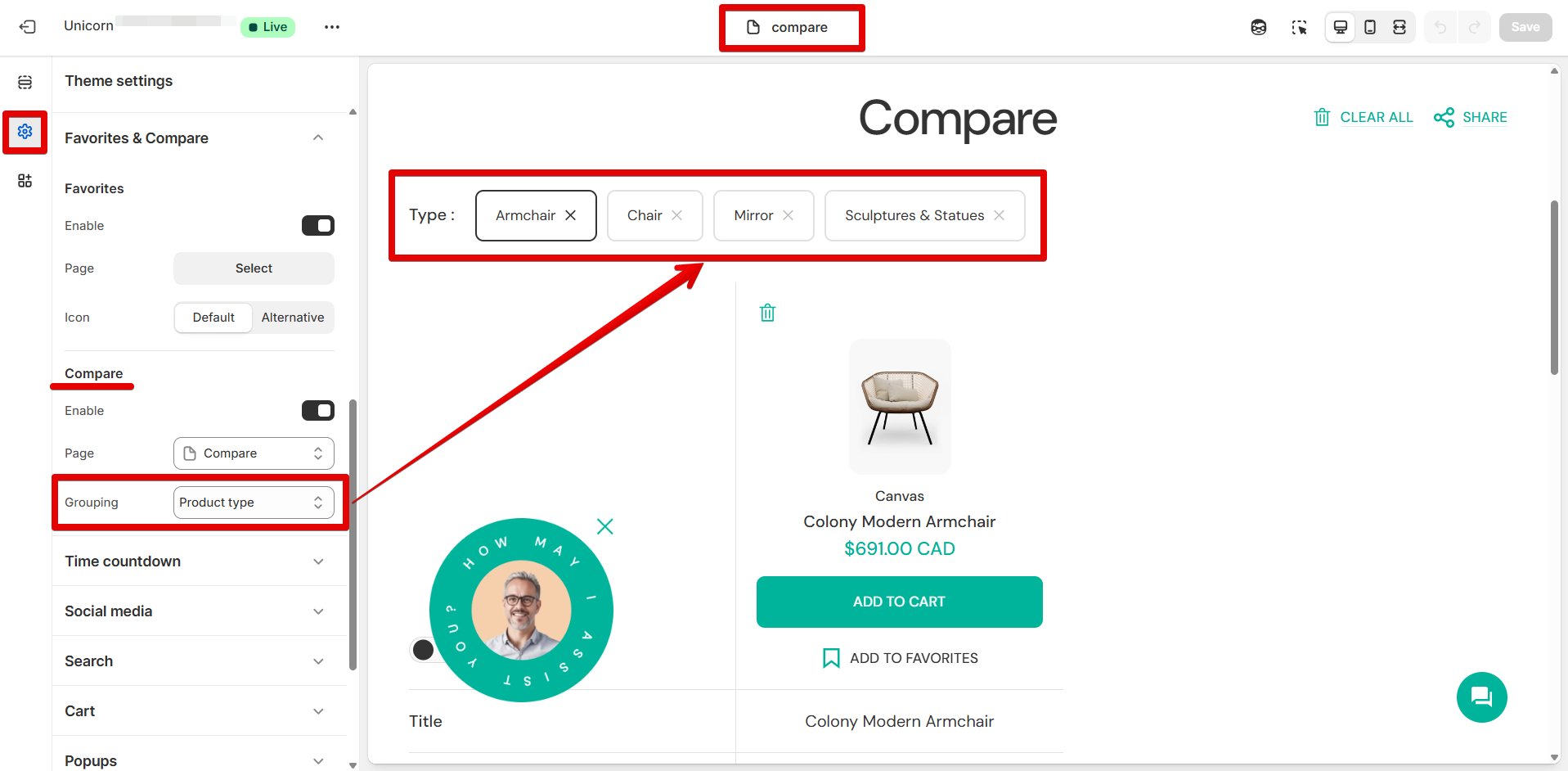
Activate the **"Enable"** option to place the compare icon in the Header, compare button on product cards, and product pages store-wide.
The corresponding template can be specified in the **"Page"** source selector.
In the **"Grouping"** drop-down, you can decide whether to group selected products by specifications such as "Product type", "Vendor", or "First collection handle". Select the "Do not group" option to cancel grouping.
### Configuring Favorites and Compare features in a store
To display Favorites and Compare features, a few steps are required:
#### **Step 1**
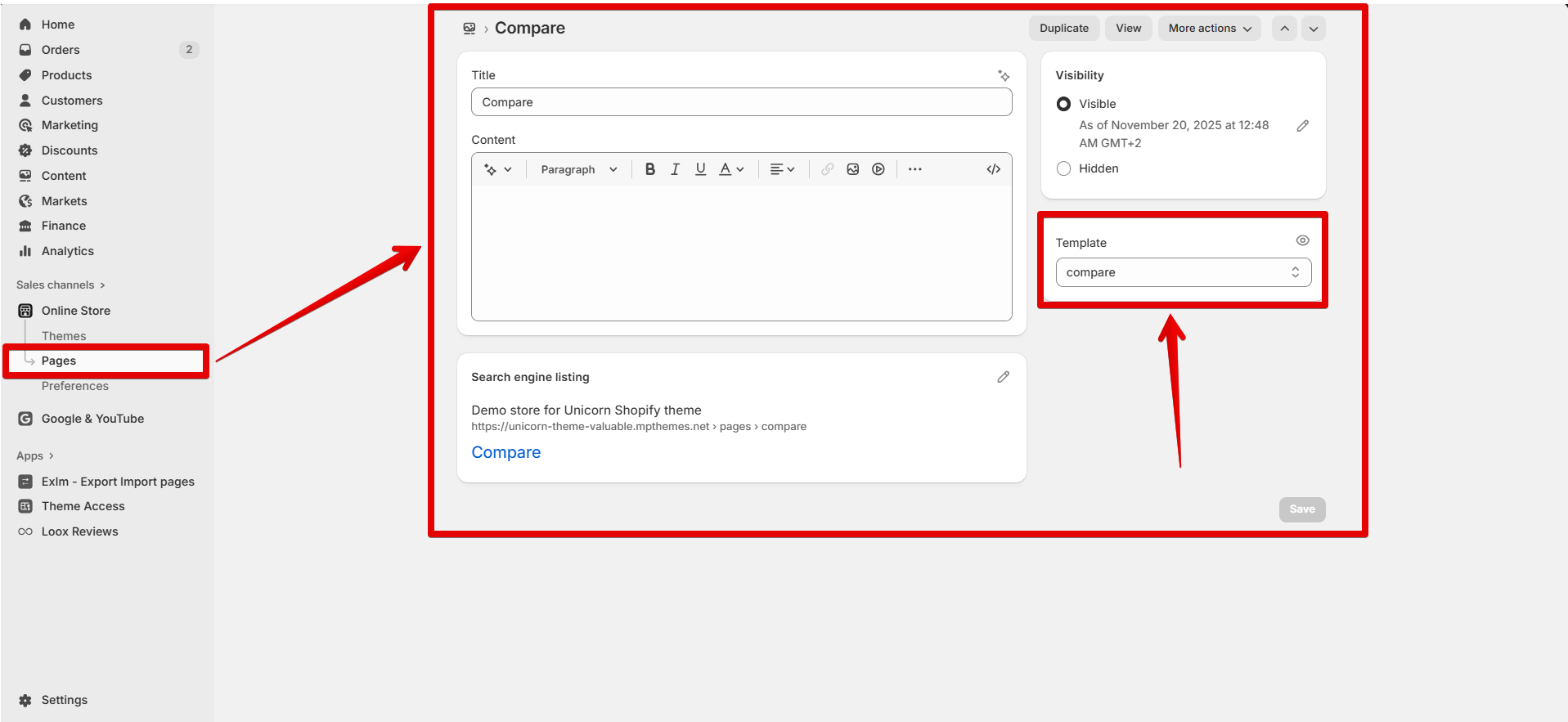
Go to your *Shopify admin -> Online Store -> Pages* and create a new page. Then, assign a custom "*compare"* or *"favorites"* template to a page:
#### **Step 2**
Select a page in the Theme Editor by navigating to *Theme settings ->* [*Compare*](#compare) or [*Favorites*](https://mpithemes.gitbook.io/unicorn-shopify-theme/page-categories/favorites).
#### **Step 3**
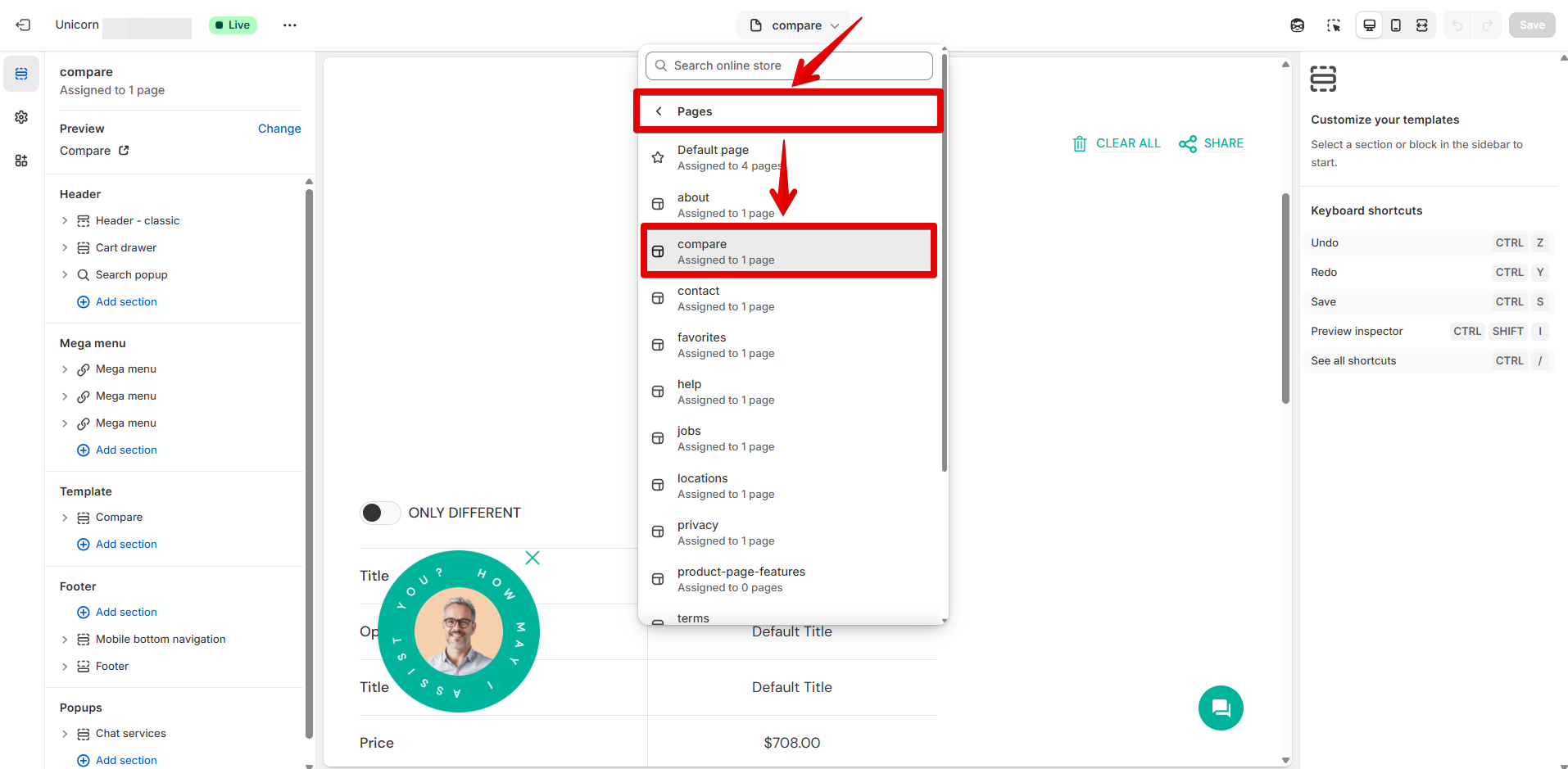
Navigate to the *"Compare"* or *"Favorites"* page by selecting a template from the top drop-down, *Pages -> compare / favorites*.
#### **Step 4**
Add any configurations in the "[Compare](https://mpithemes.gitbook.io/unicorn-shopify-theme/page-categories/compare)" or "[Favorites](https://mpithemes.gitbook.io/unicorn-shopify-theme/page-categories/favorites)" section.